GuruTrack app · installs from your browser, no app store
Add GuruTrack to your home screen
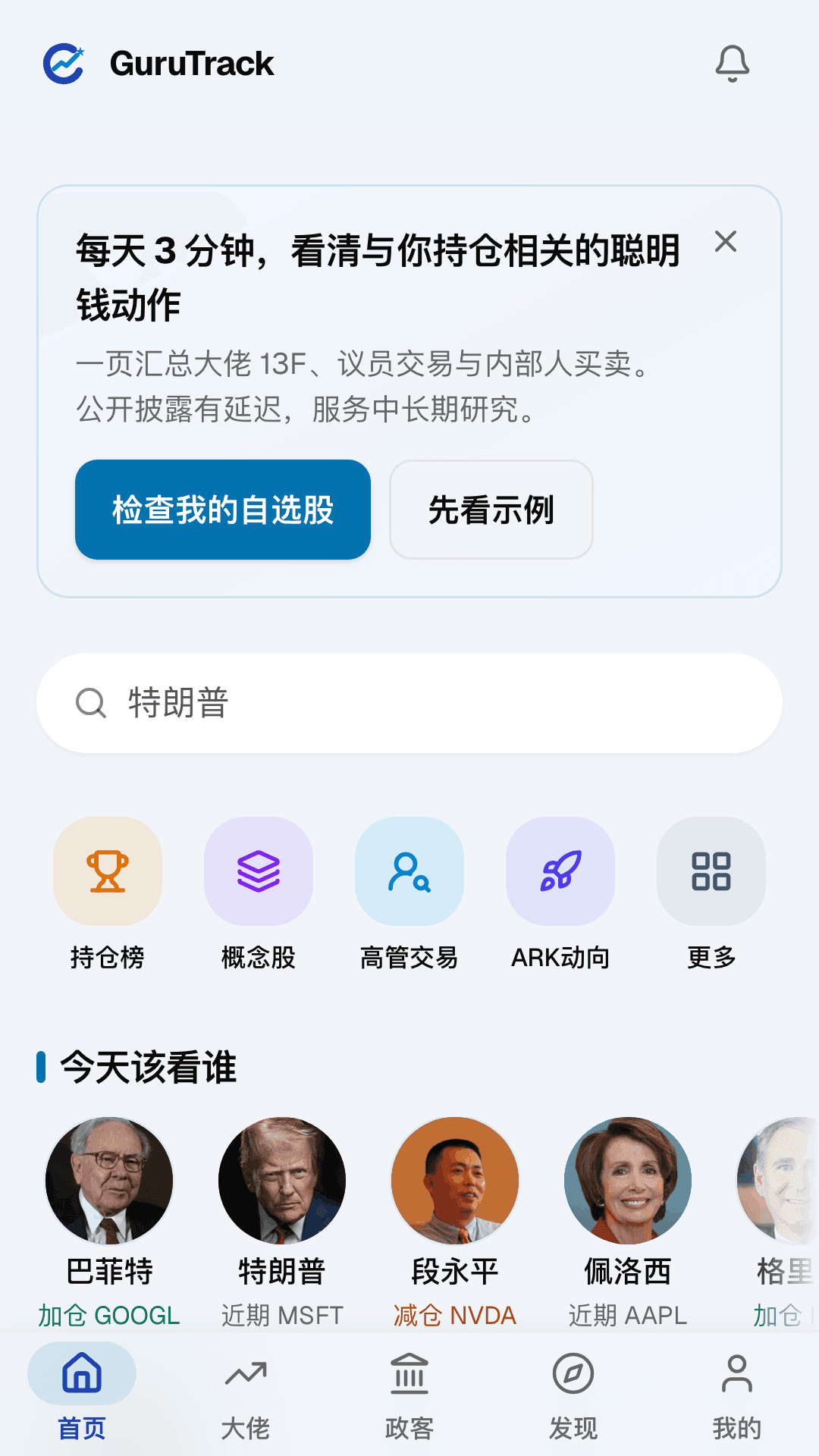
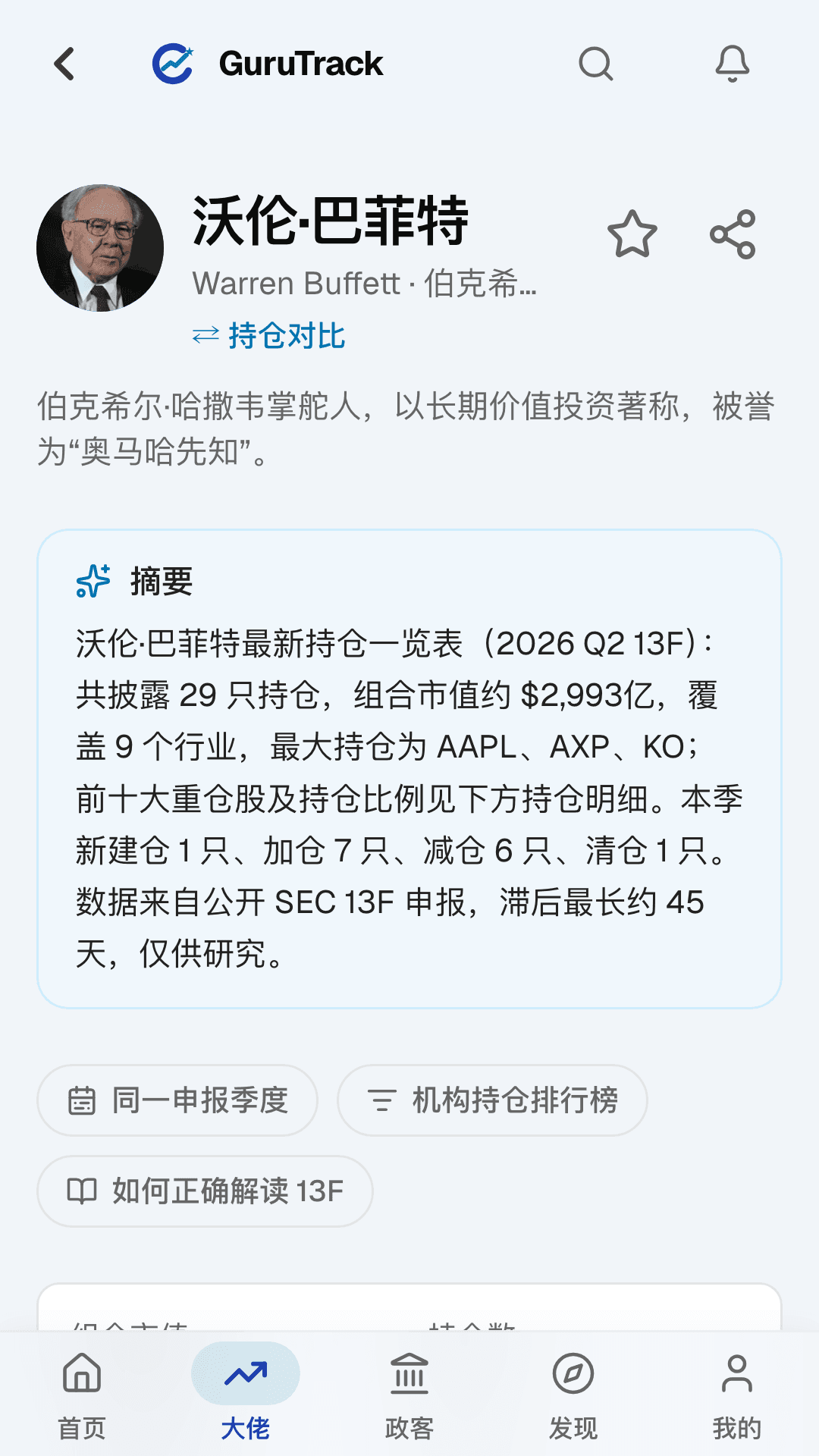
You get an icon on your home screen. Tap it and GuruTrack opens full screen, just like an app.
Opens in a tap
Straight from the home-screen icon, no typing or bookmarks.
Full screen
No address bar or browser buttons, just holdings and trades.
Almost no storage
No package and no app store; it keeps only pages you've viewed.
Steps for each device
iPhone and iPad (Safari)
- 1
Tap Share
At the bottom of Safari or next to the address bar. Can't see it? Tap ··· first.
- 2
Choose Add to Home Screen
Scroll down in the Share menu. Not there? Tap View More.
- 3
Tap Add in the top-right corner
If you see Open as Web App, leave it on.
Chrome and Edge on iPhone can add it from Share too.
Android (Chrome)
- 1
Open the menu
Tap ⋮ to the right of the address bar.
- 2
Choose Add to Home screen
Older versions call it Install app. If asked, choose Install.
- 3
Tap Install
The GuruTrack icon appears on your home screen.
Other browsers usually have it in the menu as Add to Home screen.
Computer (Chrome, Edge)
- 1
Click the install icon
At the right end of the address bar. Or use the browser menu: in Chrome under Cast, save and share; in Edge under Apps, choose Install this site as an app.
- 2
Click Install
GuruTrack opens in its own window and shows up with your apps.
Safari on Mac: File → Add to Dock.

Opened inside WeChat or another app
Apps like WeChat and Weibo show web pages in their own viewer, which can't add to the home screen. Tap ··· in the top-right corner, choose Open in browser (Open in Safari on iPhone), then follow the steps above.
Questions
- How is it different from an app-store app?
- It installs from your browser: no package and no manual updates; new versions arrive on their own. Same content as the website.
- How much space does it take?
- Very little. It keeps the icon and pages you've viewed recently, so they open faster and stay readable offline.
- How do I remove it?
- Like any app: on a phone, long-press the icon and choose Remove or Delete; on a computer, choose Uninstall from the GuruTrack window's menu.
Sources & notes
Public SEC 13F filings may appear up to 45 days after quarter-end; STOCK Act / OGE trade filings are generally due within 45 days but may be late. Partial data only — research, not investment advice.
Data from public filings, for research only. Not investment advice.